





There's a line at the door and one job to do: scan, confirm, next.
The event check-in page is built for scanning attendees quickly, one at a time, without digging through details you don't need in the moment. It shows a live counter of who's checked in, and attendee information kept to what you need to recognise someone and move: a name, a company, whether they're already in. Everything else — editing, printing, notes — is a tap away when you actually need it.
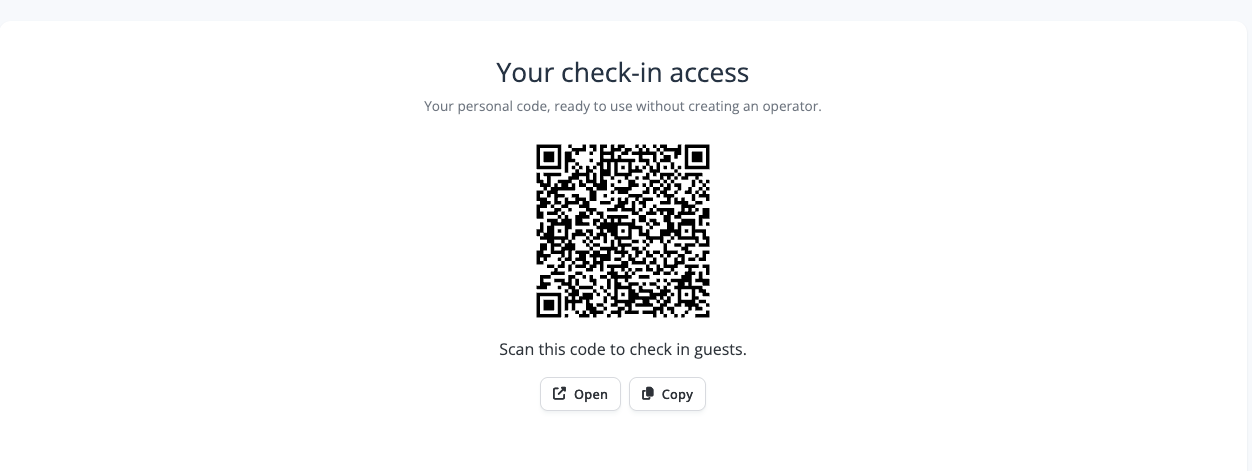
Open the page from your event's Check-in tab
Go to Event → General → Check-in, where a QR code gives you access. Scan it with the device you'll actually be checking people in from, or use Copy to grab the link if scanning isn't convenient. The page opens straight onto the camera — no login to work through, no dashboard to pass first.
Set the scanner up before the doors open
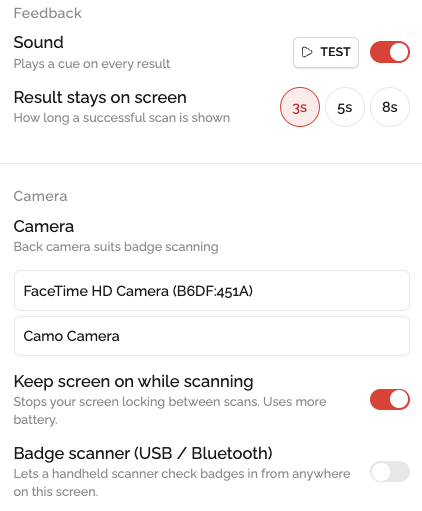
Take a minute with Scanner settings before the first attendee arrives. These settings belong to you, not to the event.
- Sound — turns the confirmation sound on or off. Use Test to hear it against the actual noise of the room.
- Result stays on screen — 3, 5, or 8 seconds. Shorter for moving fast through a queue, longer if you want time to read each result.
- Camera — which camera your device uses, if it has more than one.
- Keep screen on while scanning — stops the phone locking itself between scans. Uses more battery.
- Badge scanner (USB / Bluetooth) — for fixed hardware rather than phones. Lets a paired handheld scanner check badges in from anywhere on the page.
The same panel shows Your access: who you're signed in as, your check-in point, your access level, and when it expires. This is read-only — your event manager sets it.
Check-in per session
- Available from Premium subscription -
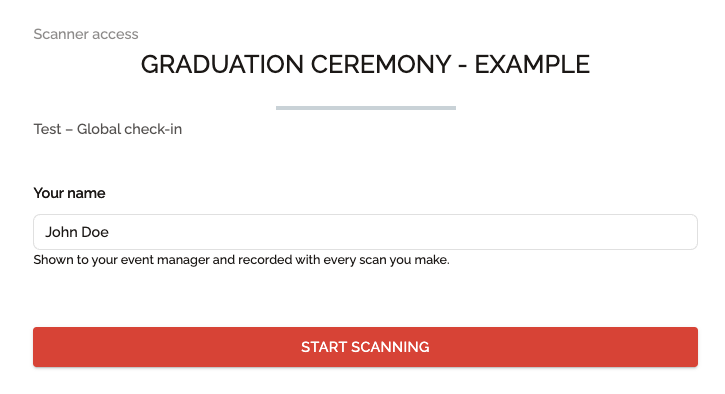
A selector at the top of the page sets the check-in point — what your scans apply to.
- Global check-in — any attendee of the event
- Category — only attendees holding the selected category (for example VIP or Standard ticket)
- Option — only attendees registered for the selected option (for example a specific session)
The counter above the camera tracks checked in against expected for the selected check-in point, with your own personal count shown next to it.

When a badge / QR-code won't scan, search instead
Type a name or an email into the search field. Matching attendees come up as a list, one line each: name, company, and check-in state.
- Scanning pauses automatically while there's text in the field, so a badge in view doesn't register by mistake.
- Clear the field to resume scanning.
What happens when someone's already checked in
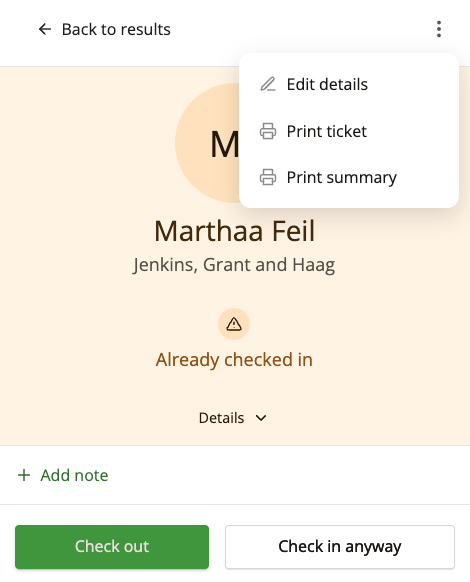
Scanning or selecting an attendee who's already checked in opens their card in an Already checked in state, with two options:
- Check out — if they're leaving
- Check in anyway — if the duplicate scan should be recorded regardless
Edit details, print, or add a note
Open the ⋮ menu on an attendee's card for:
- Edit details — corrects the attendee's contact and company information directly from the check-in page
- Print ticket / Print summary — sends the document to print without leaving the page
- Add note — leaves a note on that attendee, visible to whoever handles them next
Monitoring the check-in data
In your List of attendees, quickly find out who came to your event by filtering the attendees by Check-in status.
For more advanced filtering, you can also create a segment.
Easily export your attendees check-in information in a .xls file. The export will include the precise time attendees performed their check-in/out.
For a live view while check-in is running, open the live check-in dashboard. It shows:
- Overall arrivals against how many are expected, plus a progress bar for each check-in point — session, category, or option
- Your team of operators, including anyone who hasn't started scanning yet
- A live activity feed of every check-in, check-out, and override, with who performed it and when.
