





What is event metadata in idloom?
Event metadata are custom fields that extend the definition of your events in idloom. You create a field once, for example "Department", and it appears in the Essentials tab of every event in the account or profile. The values can then be used to filter the events list, in exports and the API, and as filters on your event catalog.
idloom offers three metadata types:
| Type | What it stores | Example |
|---|---|---|
| Text | Free text | Internal project code |
| Choice list | One or more values from a predefined list | Department: Sales, Marketing, HR |
| Date | A date | Budget approval date |
| Section title | No value; a heading that groups and orders fields | "Finance" |
Common uses include the department or business unit that owns the event, a cost center for finance reporting, the region or country, and the internal budget code. A shared set of fields gives every event the same structure, whoever creates it.
What do you need before you start?
To create event metadata in idloom, you need:
- The right plan: an idloom account on the Premium or Corporate plan.
- The right permissions: a role with the Tags & metadata permissions (Read, Create, Update, Delete). Your account administrator sets these per role in the Identity module.
- A decision on scope (Corporate plans): create the field at account level to share it with several profiles, or at profile level to keep it within one profile.
How do you create a custom event field?
Go to Settings → Events settings → Tags & metadata, click + Add metadata and choose the field type. Give the field a clear label, for example "Cost center", and use the placeholder and explanatory text to tell your team what to enter.
A few options shape how the field works:
- Mandatory: every event must have a value.
- Add to event filters: makes the field available in the events list filters.
- Available for profiles (Corporate plans): shares the field with the profiles you select, and can be extended automatically to new profiles.
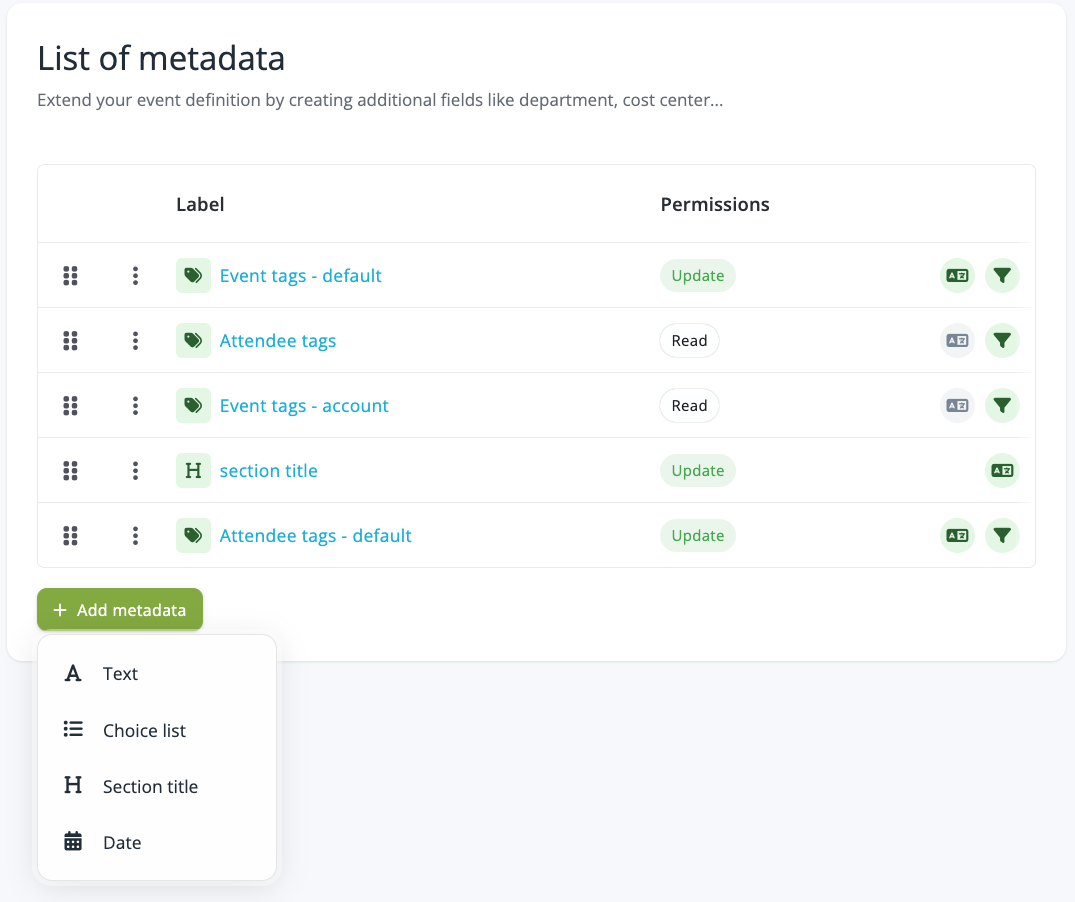
Fields appear on the event in the order of the List of metadata, which you can change by drag and drop.
How do you set up a choice list?
A Choice list lets your team pick values from a fixed list, which keeps reports consistent: everyone selects "Marketing" instead of typing "Mktg", "Marketing team" or "MKT".
- In the Add metadata drawer of a Choice list, go to Add choices.
- Enter a Key: the stable value used in exports and the API, for example mkt.
- Enter a Label: the text your team sees on the event, for example "Marketing".
- Click Add item for each additional choice. Drag a choice to reorder it, or click the bin icon to remove it.
- Tick Allow multiple answers if an event can have several values.
- Click Save.
Keys and labels can be edited at any time. Labels can be translated into each language enabled on your event with the language selector at the top of Tags & metadata.
Where do you fill in metadata on an event?
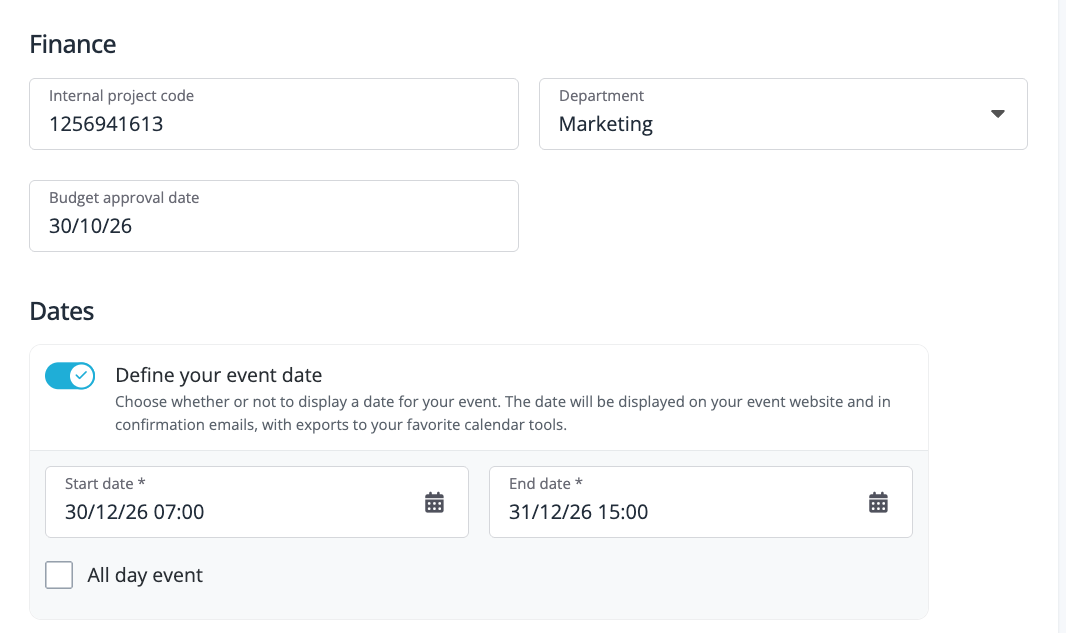
Open the event in idloom and go to General → Essentials. Your metadata fields appear there in the order set in the List of metadata, grouped under any Section title you created. Fields marked Mandatory must be completed.
How do you filter events by metadata?
In the idloom events list, open Filter events and go to Filter by metadata. Every field with Add to event filters ticked appears there. Select a value, for example the "Marketing" department, to list only the matching events.
How do you share metadata fields across profiles?
On Corporate plans, a metadata field can be shared across the account or kept within one profile, for example a business unit or a country team.
- Account fields are shared with the profiles you select. Inside a profile, they are read-only.
- Profile fields are created in the profile's own Tags & metadata page and used only by its events.
Use Filter by profile in the List of metadata to see which fields a profile has. On Premium plans, the account has a single profile, so the distinction doesn't apply.
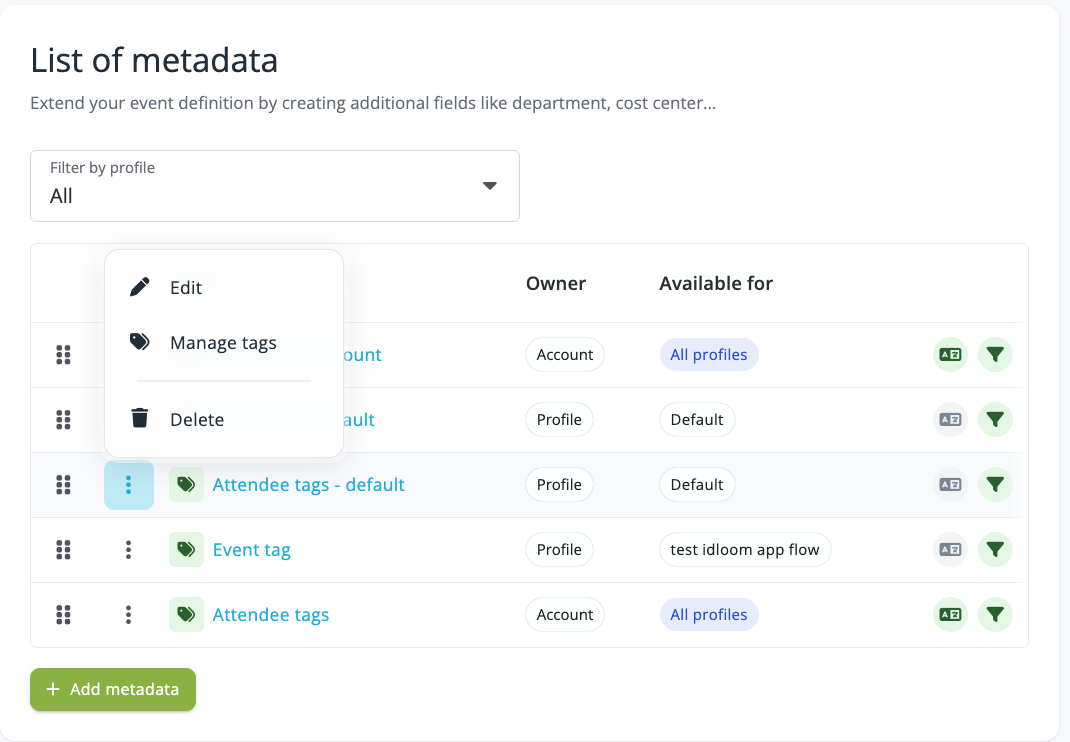 On Premium plans, the account has a single profile, so account and profile fields behave the same way.
Can you use event metadata to filter your event catalog?
Yes. With the Advanced catalog, available on request, metadata fields can become custom filters on your idloom event catalog, so visitors can browse your upcoming events by department, region or topic. You can also combine filters into a Group of events, or share a catalog link pre-filtered on one value with Generate URL.
Learn how to promote your upcoming events with the catalog